In modern workflows, AI has become an incredibly useful assistant. Raycast, a popular productivity tool on macOS, features built-in AI functionality (Raycast AI) that has become many people's first choice.
Currently, besides offering official subscription plans, Raycast also supports Bring Your Own Key (BYOK) functionality, allowing users to choose model sources based on their needs. Additionally, Raycast for Windows has been officially released. Although AI features aren't fully supported yet, Windows users can install and try it out while anticipating future updates. If you want to experience Raycast, you can download it from the Raycast Windows page.
This article will explain how to integrate AI model services provided by Zeabur AI Hub into your Raycast interface using Raycast's Custom AI Providers feature.
What is Raycast AI?
Raycast AI is artificial intelligence functionality integrated into Raycast, primarily including the following aspects:
Quick AI: Enter questions directly in the search box and pressTabto quickly get answers.AI Chat: A standalone chat window suitable for in-depth conversations, code debugging, or writing long-form content.AI Commands: Default or custom AI commands, such as "Explain text," "Rewrite tone," or "Translate."AI Extensions: Use@to tag specific extensions, allowing AI to directly integrate with your other development or productivity tools.
What is Zeabur AI Hub?
Zeabur is a cloud deployment platform, and Zeabur AI Hub is their AI integration service. It has several core advantages:
Diverse Model Selection: Besides GPT-4o and Claude 3.5, it also supports powerful open-source models like DeepSeek and Llama 3.OpenAI Standard Compatibility: Provides an API interface consistent with OpenAI, allowing almost all software that supports OpenAI API to integrate seamlessly.Cost-Effective: Uses pay-as-you-go billing without requiring fixed monthly fees, suitable for users seeking flexible usage.
Tutorial: Adding Zeabur AI Hub to Raycast AI
Let's see how to set this up:
Step 1: Get Zeabur API Key
- Log in to the Zeabur Console.
- Go to the AI Hub page.
- Generate a new
API Keyand copy it for later use.
Step 2: Open Raycast Settings
- Open the Raycast search box on your Mac.
- Type
AIand selectAI Raycast Settings.
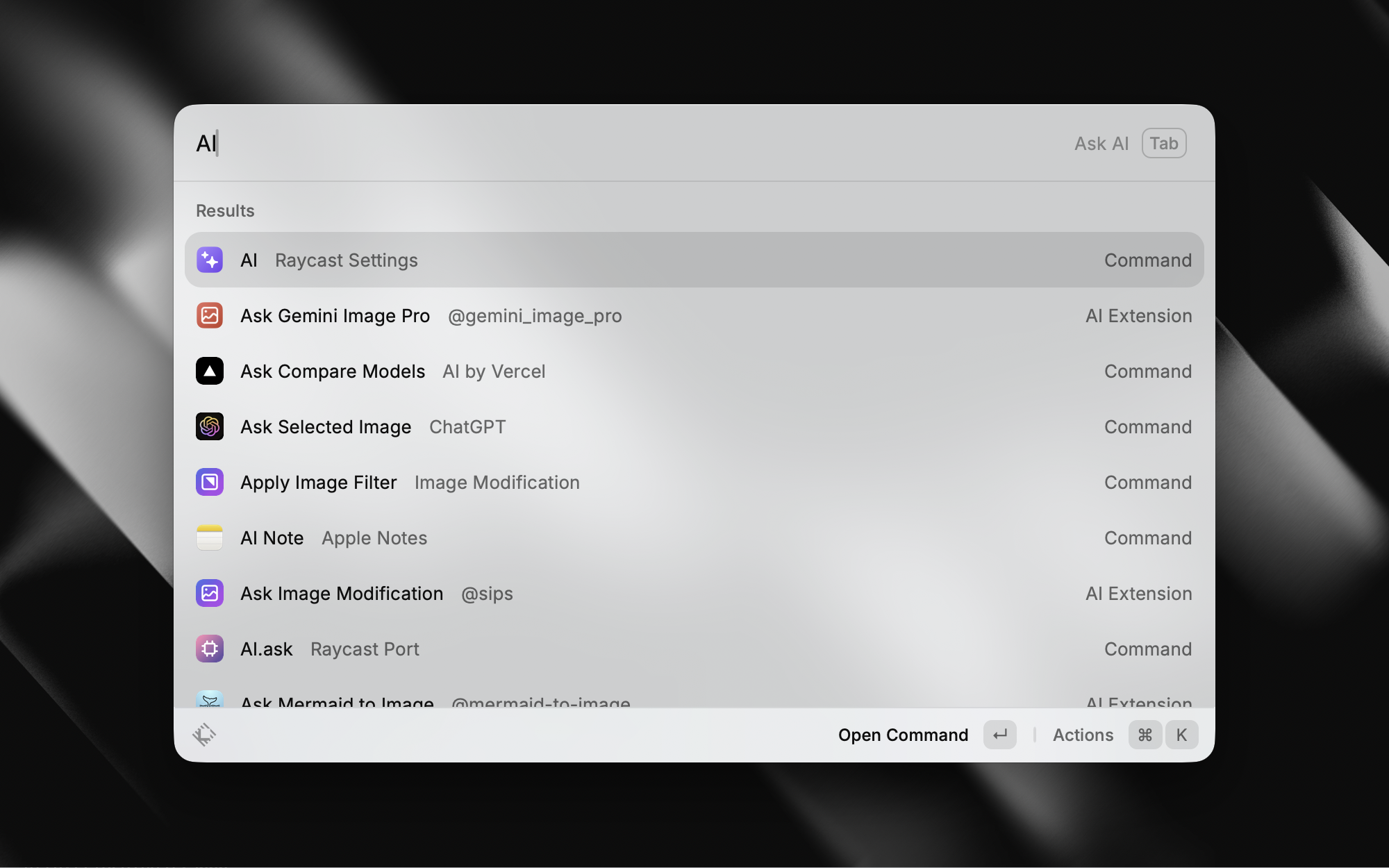
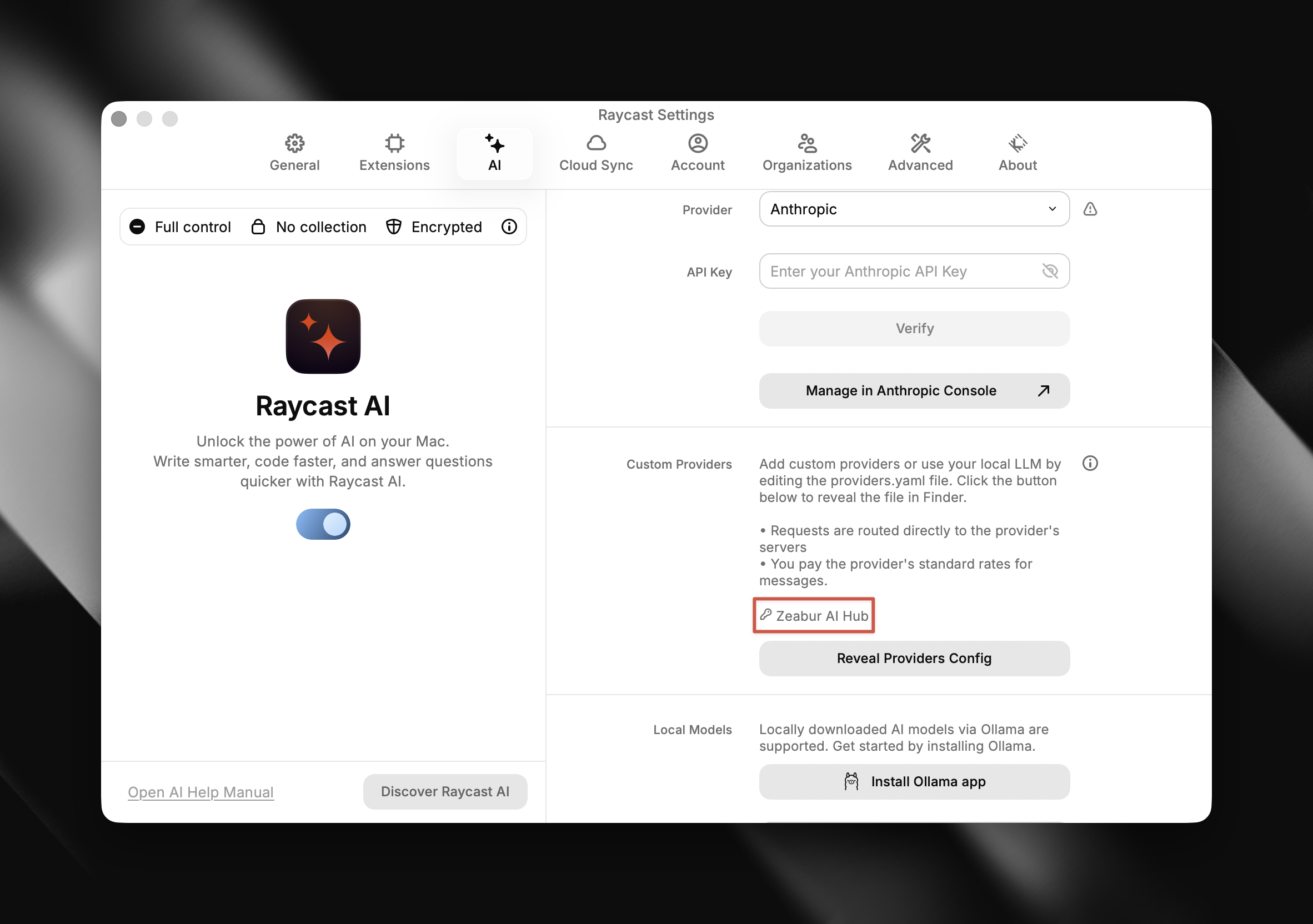
- Scroll to the bottom of the right side of the settings window, find and enable the
Custom Providersoption.
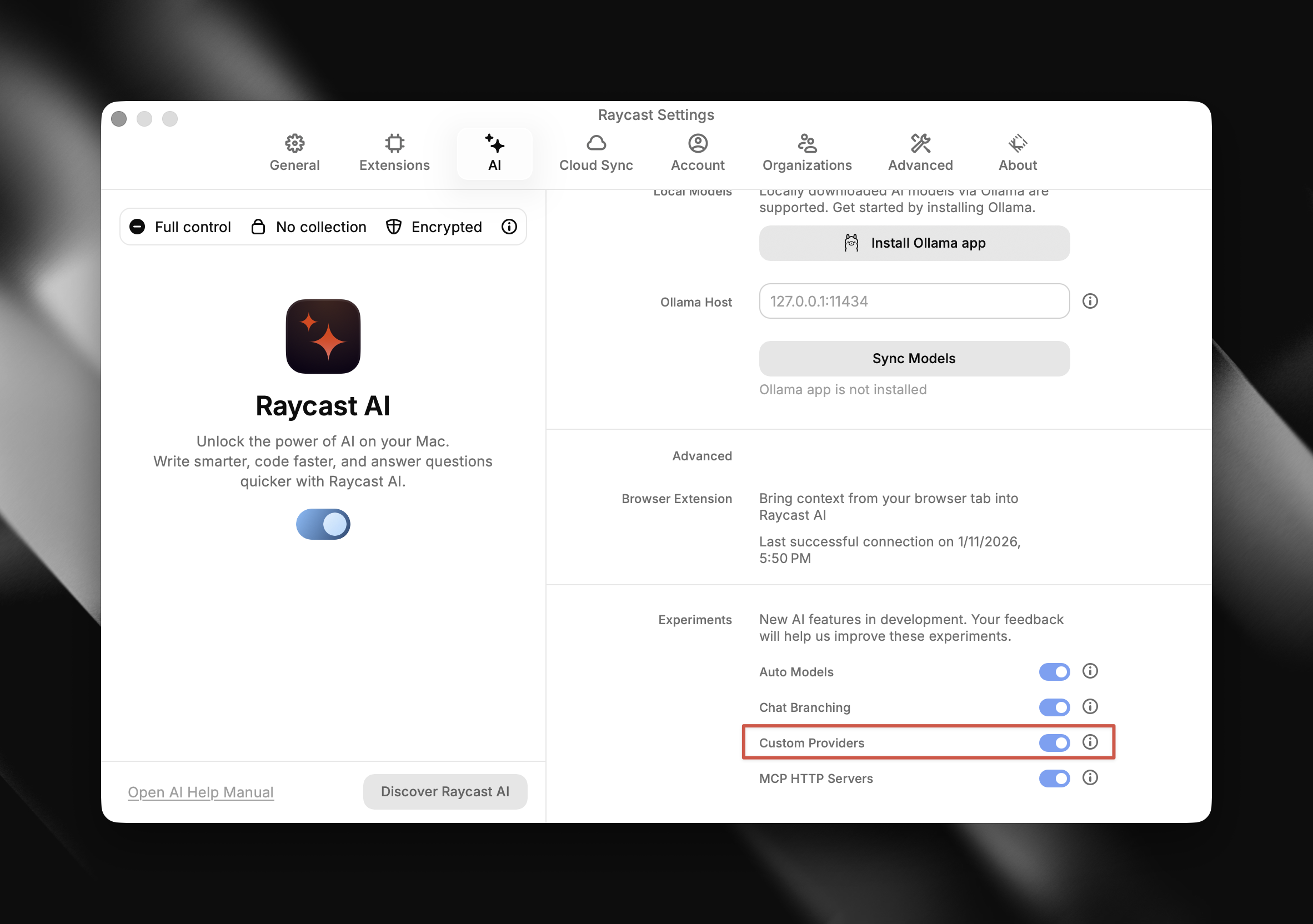
- Then click the
Reveal Providers Configbutton in that section, which will automatically open Finder and locate the configuration folder.
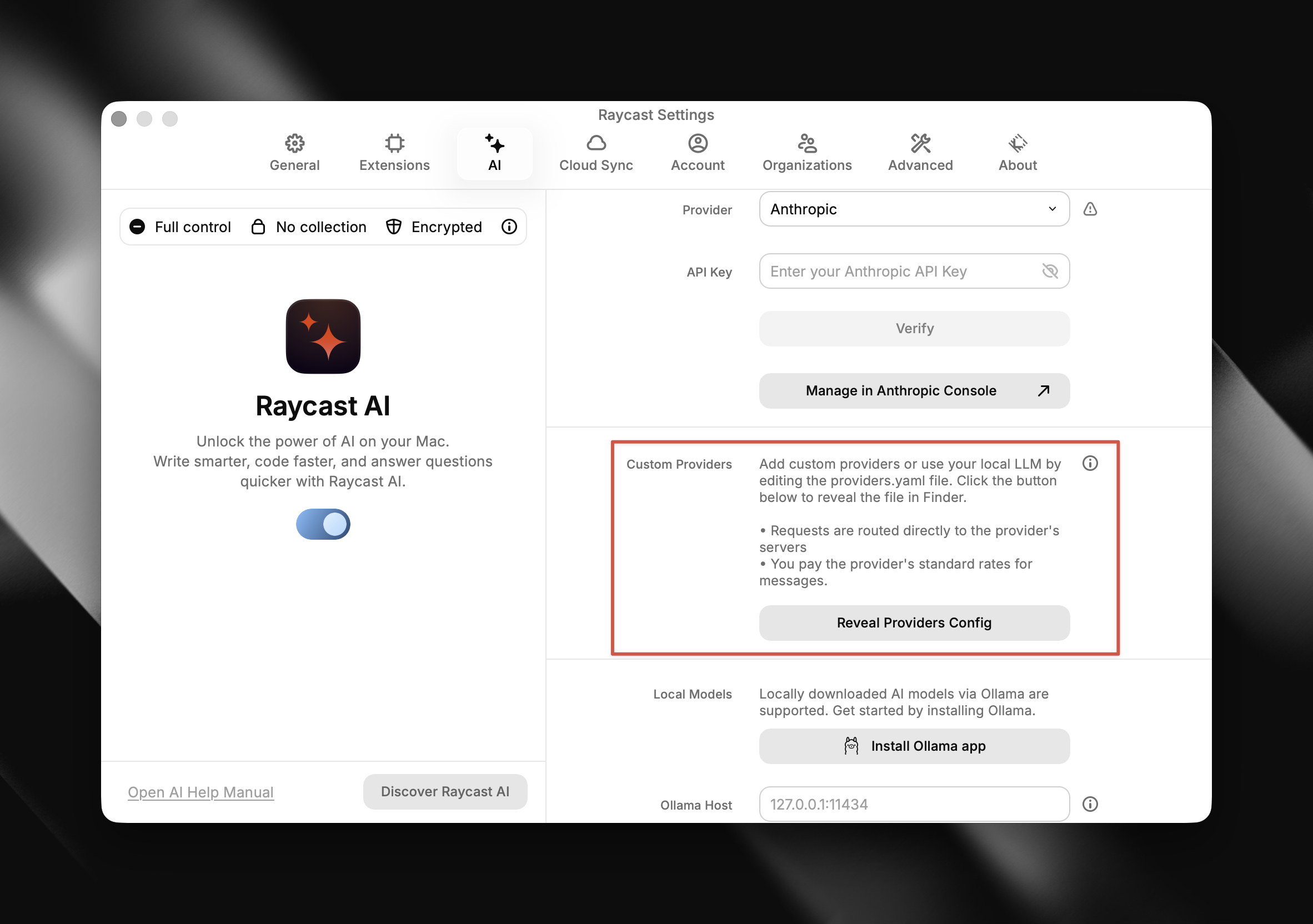
Step 3: Edit the providers.yaml Configuration File
- In the opened Finder window, enter the
AIfolder. - Find the providers.template.yaml file and open it with a text editor (such as VS Code or TextEdit).
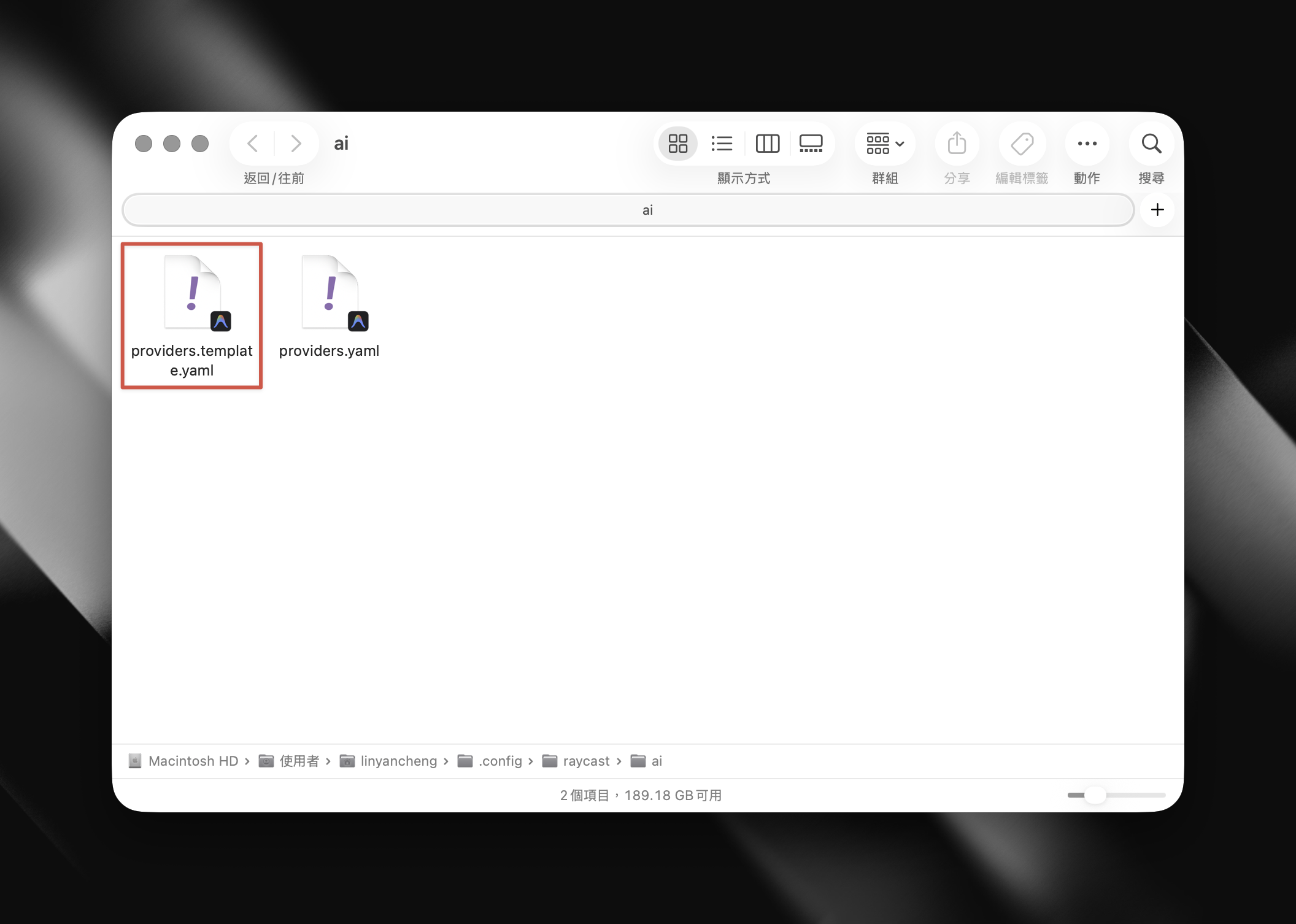
- Modify the content to the following format (replace
YOUR_API_KEYwith the key you obtained in Step 1):
providers:
  - id: zeabur_ai_hub
    name: Zeabur AI Hub
    base_url: https://hnd1.aihub.zeabur.ai/ # Alternative San Francisco node: https://sfo1.aihub.zeabur.ai/
    api_keys:
      zeabur-ai-hub-key: YOUR_API_KEY
    models:
      - id: gpt-4o
        name: "GPT-4o"
        context: 200000
        provider: zeabur-ai-hub-key
        abilities:
          temperature:
            supported: true
          vision:
            supported: true
          system_message:
            supported: true
          tools:
            supported: true
      - id: claude-sonnet-4
        name: "Claude Sonnet 4"
        context: 200000
        provider: zeabur-ai-hub-key
        abilities:
          temperature:
            supported: true
          vision:
            supported: true
          system_message:
            supported: true
          tools:
            supported: true
Adding Other Models: If you want to use other models (such as Gemini), you can continue adding below themodelslist using the following format. To see which models are available in Zeabur AI Hub, visit the Zeabur AI Hub Models page:
- id: <model-name> # e.g., gemini-2.5-pro
  name: "<model-display-name>" # e.g., "Gemini 2.5 Pro"
  context: 200000
  provider: zeabur-ai-hub-key
  abilities:
    temperature:
      supported: true
    vision:
      supported: true
    system_message:
      supported: true
    tools:
      supported: true
Save and Rename: After completing the configuration, rename the file to providers.yaml (remove.template).
Step 4: Select the New Model in Raycast
Return to the Raycast settings page, and you should see Zeabur AI Hub successfully loaded. Now open AI Chat or use Quick AI, and you can directly switch to the models you just configured in the model selection menu.

Conclusion
By combining Zeabur AI Hub with Raycast, you can not only experience the powerful features of Raycast combined with AI. If you're looking for an alternative to Raycast Pro, this is definitely a solution worth trying!